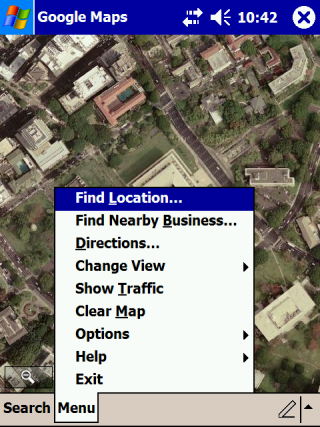
 Google released a Google Maps client for Windows Mobile that installs from a CAB file that can be downloaded and installed directly from Google (no need to sync with a PC). It is also a native application. No Java Midlet needed. This means it is fast and looks good on a Windows Mobile device. I tested it on an old Dell Axim X50v running Windows Mobile 2003 Second Edition. As you can see from the screen cap, the satellite image view looks nice and clear on its screen and the menu looks like most other native applications.
You can download it directly to your device from: http://google.com/gmm/
The application can also show a traditional looking street map, locations of businesses, real-time traffic for certain cities, and driving directions. I’m very impressed by what I’ve seen. I hope we see more native Windows Mobile apps from Google in the future.
 More ranting and grumblings from this blog. Sorry ’bout that.
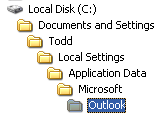 I upgraded one of my PCs from Windows XP Media Center Edition to Windows Vista Ultimate Edition last month. However, that PC was not my main PC (the one I sync my Windows Mobile devices to). If you go back through this blog, you’ll find that I did sacrifice a WM Smartphone to sync with the Vista box to test Windows Mobile Device Center (WMDC). So, how did I get the data over to the Vista box for testing? I just copied the files over. There are a number of ways to find where your Outlook.pst and other Outlook files are stored. Here’s how I do it (since I can never remember where it is from one time to another).