Subscribe in a reader

June 2007


Apple iPhone Launch Impressions

Apple iPhone Launch Day

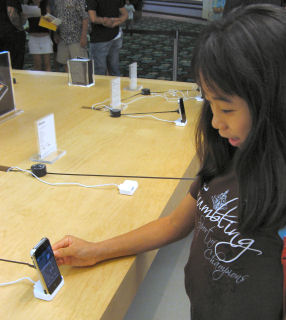
I went to a local Apple store today after work to take a look at the iPhone. I expected to find a couple of hundred people lined up there (the larger Apple store a few miles away probably drew many more people) and, indeed, found around 500 people standing in segmented lines (to allow foot traffic). There were a number of things that surprised me while standing in line.

First, many, and maybe most, of the people standing in line clearly understood what the iPhone was all about and what various smartphones from other vendors offered. I saw a number of Moto Q, Blackjack, and MDA devices in various hands of excited people eargerly discussing getting rid of them and their current wireless provider in favor of the iPhone. This, quite honestly, surprised me quite a bit. I expected a group that consisted mostly of iPod users with low-end phones who just wanted to coolest newest Apple gizmo.

Second, there were a lot of Windows users in the line. I expected more of a Mac-crowd.

Third, there were a lot of Mac power users in line. I was surprised how many were talking about using Parallels Desktop for Mac (virtualization software that lets you run Windows alongside Mac OS X) to run one or two necessary Windows applications on their Mac. Umm, shameless self-promotion… I wrote a little PDF booklet for O’Reilly Media last summer titled Windows for Intel Macs focused on helping Mac users to use Microsoft Windows on a Mac using Parallels.

Fourth, and this is really an extension of my first observation above, I was really surprised to hear how many people were willing to break their current two year contract with Verizon Wireless, or Sprint PCS, or T-Mobile to use an iPhone on the AT&T Wireless network. One woman mentioned to a group behind us how she had moved from Cingular (now part of AT&T Wireless) to Verizon to buy a Windows Mobile device just a few months ago and is now breaking that contract to get an iPhone.

Fifth, from what I could tell I may have been the only person of the hundreds standing in the line that did not buy an iPhone. I saw tiny bag after tiny bag containing newly purchased iPhones as I stood in line. And, as I walked out, I saw people in front and behind me with iPhone bags. I really didn’t expect to see $500 and $600 devices fly out the store like that.

The real test comes in a few months after the first wave of iPhone users have had a chance to put it through its paces. However, if the majority of iPhone users are still happy by year’s end, I think I will be glad I didn’t name my site WindowsMobileViews in favor of the more generic MobileViews. Because if these new owners are still happy by December, the phone industry will have a new 500 pound gorilla to deal with: Apple.

Apple
Mobile Devices
Mobile Phones

Comments (1)

Permalink

Picasaweb for Mobile Devices

Picasa Web for Mobile Devices

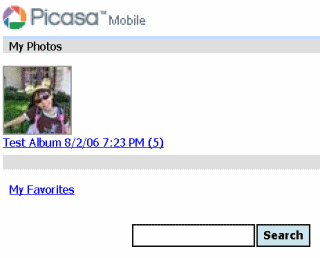
Google announced Picasa Web Albums for Mobile Devices. You can find the announcement at… Put your photos on a map, and Picasa on your phone … and the mobile friendly site itself at…

http://picasaweb.google.com/m/

I tried it on both a Smartphone and Pocket PC (see screencap above) and the site worked fine on both platforms

Mobile Devices

Comments (0)

Permalink

Clusty Mobile Search Engine

Clusty Mobile Search Engine

I guess you can’t have too many mobile friendly web search engines. Here’s another one you can find at:

m.clusty.com

It differentiates itself by dividing (or clustering) search results into groups such as web, images, and deeper drill downs into the category (say “windows mobile”).

Mobile Devices

Comments (0)

Permalink

HTC Advantage Pocket PC Phone Edition Unique Keyboard

HTC Advantage Pocket PC Phone Edition video
The HTC Advantage Professional Edition (Pocket PC Phone Edition) is a very unique device in the Windows Mobile world. The first thing that strikes you is its 5 inch LCD display. Its fast processor and 802.11g (not 11b) WiFi makes it a great web browsing tool with that big display. And, of course, it is hard not to notice its big keyboard in various product photos. So, I was quite puzzled when I was able to play with one for a while because I couldn’t figure out where the keyboard. I thought it might pull out from the bottom or, perhaps, be a clamshell design with the keyboard covering the screen. As it turns out, it is neither though my second guess is closer. Its keyboard is a separate device that links up magentically. Click on the screen cap above to go to YouTube where I posted a short video demonstrating how it works. Very cool design.

Mobile Devices
Pocket PC/Phone Edition
Windows Mobile

Comments (0)

Permalink

Windows Mobile 6 Voice Command Tutorial

Microsoft Voice Command Icon

As far as I can figure Microsoft Voice Command is now in the firmware of Windows Mobile 6 Standard Edition (Smartphone) and Professional Edition (Pocket PC Phone Edition) devices. You might recall that my friend Frank McPherson and I had couple of give-and-take blog commentaries on opposing sides of its usefulness (Frank’s Pro, I’m not so keen on it). I guess voice dialing would be useful if it worked consistently. But, where I live, we have a lot of ethnic names (like mine!) that it seems to get confused with. And, I’m not sure how useful mild shouting application commands is compared to just clicking a button or two (especially on Smartphone with a thumb keyboard that can be dealt with one hand). But, if you would like to get the most out of Microsoft Voice Command, head over to Microsoft’s tutorial at…
Microsoft Voice Command Tutorial

Mobile Devices
Pocket PC/Phone Edition
Smartphone
Windows Mobile

Comments (4)

Permalink

Windows Mobile 6 Notes Lost its Inked Text Recognize Ability

Windows Mobile 6 Notes

The Windows Mobile Notes app never seemed to be able to fire on all cylinders from the very beginning. Despite its apparent usefulness, it seems like it didn’t get widely used by most Pocket PC users. For me theĀ  main problem was that it didn’t sync reliably with Outlook Notes when I first tried it. And, other applications from a variety of 3rd party developers quickly overtook Notes by providing a lot more useful features and metaphors (think yellow sticky notes).
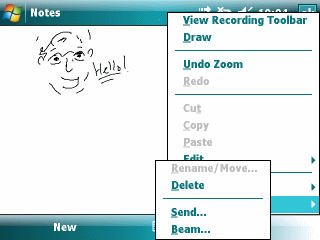
Notes lost the ability to draw but gained the ability to recognized inked text a few generations ago. Windows Mobile 5 restored the ability to draw in ink again. But, I just noticed that Windows Mobile 6 lost the ability to recognize inked text (it used to be in the Tools menu). It isn’t a big deal, I guess. But, I hate to see Windows Mobile 6 lose a feature. I guess Recognize gets added to the list of dozens of features lost by Windows Mobile over the years.

Mobile Devices
Pocket PC/Phone Edition
Windows Mobile

Comments (2)

Permalink

Windows Mobile 6 Professional Edition Still Doesn’t Know What a Phone Number Looks Like

Microsoft keeps telling us design choices such as removing the Pocket PC bottom menu bar area, previously used to good effect by many applications, with the two giant soft keys is to make the user experience and software design experience of the Pocket PC and Smartphone closer. And, yet, as of Windows Mobile 6, they still haven’t given the Pocket PC (AKA Classic Edition and Professional Edition) one very simple and useful feature that has been in the Smartphone (AKA Standard Edition) for years: The ability to recognize any string that looks like a phone number as a phone number and make it a hot link dial-able object.

For example, if you create a Task in Outlook (on the desktop since you can’t create Tasks on a Smartphone… and what’s up with that limitation???) and type in a bunch of names and phone numbers in no special fashion, the phone numbers will appear underlined and can be used to dial the phone on a Smartphone. I hoped the Pocket PC (Professional Edition) would gain this feature with Windows Mobile 6. But, nope. So much for Windows Mobile feature convergence. Guess we have to wait and see what Windows Mobile 7 gives us.

Mobile Devices
Pocket PC/Phone Edition
Windows Mobile

Comments (2)

Permalink

Opera Mini 4 Beta on a Windows Mobile Pocket PC

Opera Mini 4 Beta

I installed the beta release of Opera Mini 4 on a K-JAM Pocket PC Phone Edition (Windows Mobile 5) this evening. I downloaded to a PC and copied the files over to the K-JAM using ActiveSync. Opera Mini is a Java Midlet. So, I used the Midlet Manager to fire up Opera Mini. It went through a lengthy but simple configuration and used my WiFi connection (I don’t have a SIM in the K-JAM) to get to the Interent.

I visited a couple of sites that are not formatted for mobile devices and found that Opera did a pretty good job of rendering the pages to fit both the portrait and landscape screen modes. It got a bit grumpy when I turned off WiFi and didn’t want to surf the net after turning WiFi back on. I had to shut down the Midlet manager and fire it up again to let Opera figure out how to get back to the web.

My main beef is not with Opera but with the general state of Java apps on mobile devices. They always look out of place and don’t conform to the Windows Mobile interface conventions I’m used to.

That said, Opera Mini adds enough value (browsing non-mobile friendly sites on a Windows Mobile device) that I’m keeping it on the K-JAM for a while to test drive it a bit more. I might even install it on the Dash to see how it looks on a smartphone.

Mobile Devices
Pocket PC/Phone Edition
Smartphone
Windows Mobile

Comments (9)

Permalink

How to Turn on a Windows Mobile Smartphone

T-Mobile Dash Power Button

Every now and I then I hear or read someone advising Windows Mobile Smartphone (aka Standard Edition) users to press and hold the power button until the screen comes on. You could do that. But, I bet your thumb or finger will start hurting after doing that a couple of dozen times. Here’s an easier and less painful way that has worked for every Smartphone I’ve used since the Smartphone 2002 days (1st generation).

  1. Press and hold the power button for a two-count (one… two…)
  2. Release the power button
  3. Wait 4 to 5 seconds. The screen will remain completely blank during this period
  4. The screen should suddenly come to life after the waiting period and start up properly

I have no idea why there isn’t some kind of indication (blinking power light or something) during that 4 to 5 second period of nothingness. If someone could explain that to us, I would be grateful :-)

Mobile Devices
Smartphone
Windows Mobile

Comments (0)

Permalink

YouTube Mobile Doesn’t Mix with Windows Mobile

YouTube Mobile error messasge on Windows Mobile

YouTube Mobile was released from its exclusive deal with Verizon Wireless this week. Unfortunately, most Windows Mobile devices (at least the ones I have) don’t support the 3GPP video file format. I could swear I had a Windows Mobile Smartphone or two that did. But, I can’t remember which one it is. I tried it with Windows Mobile 2003 2nd Edition, Windows Mobile 5, and Windows Mobile 6 (Smartphone and PDA) devices this evening. None of them could display a YouTube Mobile video.

Mobile Devices
Mobile Phones
Pocket PC/Phone Edition
Smartphone
Windows Mobile

Comments (12)

Permalink

Yes, You Can Break a Pocket PC Power Button

Compaq iPAQ 3650 Broken On-Off Button

First, yes I know that Pocket PCs don’t really have a power button. The button just toggles the device between a low-power suspend mode and active mode. But, let’s just call it a Power Button to simplify life.

The photo above is of my old Compaq iPAQ 3650 Pocket PC. It was released in Fall 1999 and was probably the first Pocket PC that really drew a lot of attention. Unfortunately, mine had two moving parts that wore out a lot quicker than I thought they should: The power button and the stylus release button. I ended up having to turn on the device by using its feature of letting any hardware button activate the underlying application. I used the PHM Suspend PowerToy mentioned a few days ago to turn it off. It finally gave up the ghost in early 2002 after I used it about, hmm, 18 months or so. I had a 3850 by then. But, the 3650 was actually replaced by the a first generation T-Mobile Pocket PC Phone Edition.

Mobile Devices
Pocket PC/Phone Edition
Windows Mobile

Comments (2)

Permalink

Windows Mobile 6 Internet Explorer Favorites on Home Screen

Windows Mobile 6 Home Screen Favorites List

I noticed a few weeks ago that Internet Explorer on both my Windows Mobile 6 smartphone and PDA has a drop down Favorites and History area on its home screen. Thinking that it was just another link to the Favorites list, I ignored it until a few days ago. It turns out that the drop-down favorites link provides a list of the last five sites visited from the Favorites list. Very handy, The History list lists the web page titles (not the URL) of the last five pages visited. Again, very handy.

Mobile Devices
Pocket PC/Phone Edition
Smartphone
Windows Mobile

Comments (2)

Permalink